
Change Log
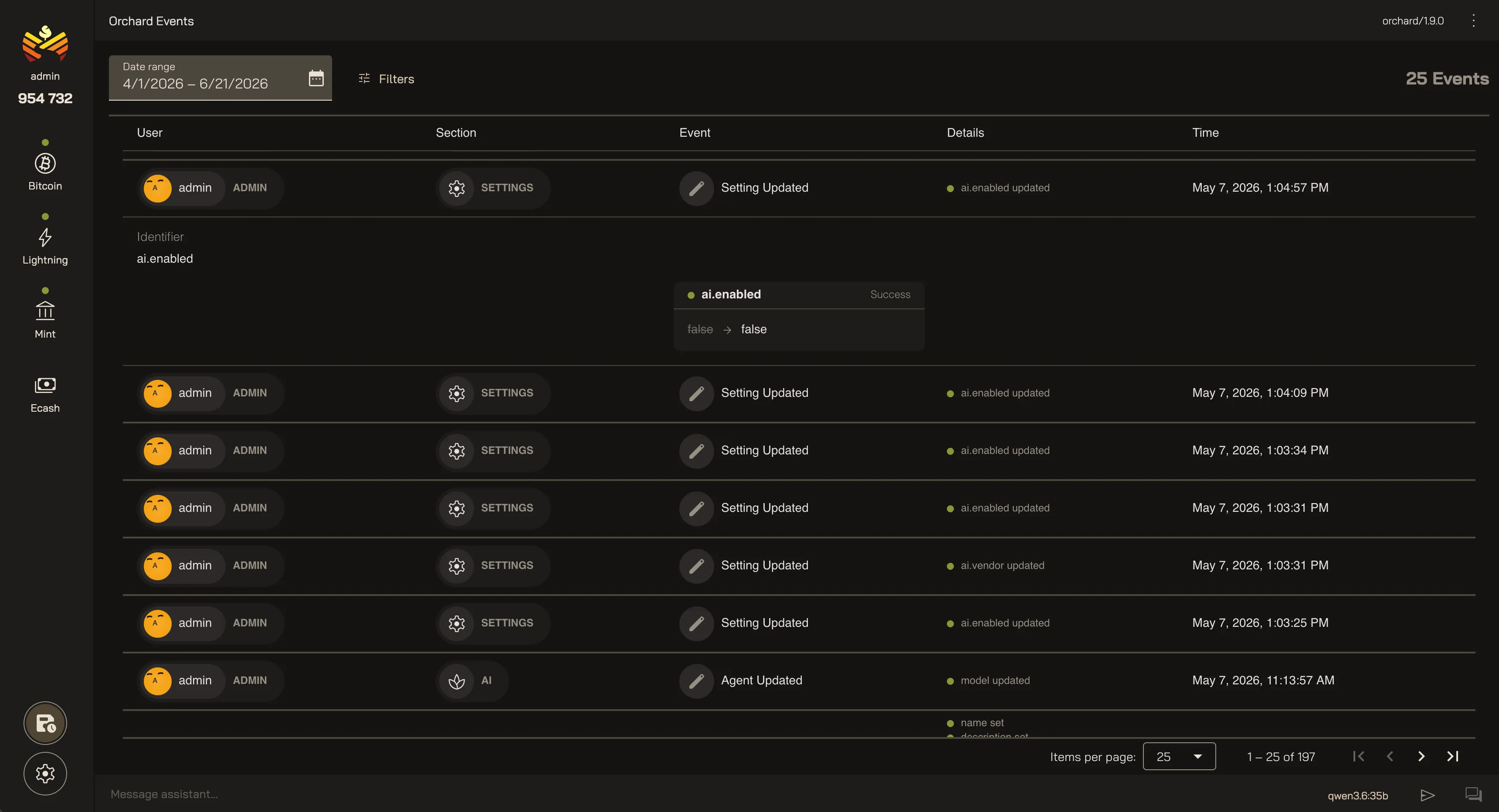
Orchard keeps a log of all change actions taken by the users so you have a complete record of what happened, when, and by who.
Entries
Section titled “Entries”Each entry records who did what, where, and when:
- User — the actor behind the event: a crew member, the System, or an AI Agent.
- Section — which service it touched: Bitcoin, Lightning, Mint, Ecash, AI, or Settings.
- Event — what happened, like a setting updated or a keyset created.
- Time — when it occurred.
Expand a row to see the details — each field that changed, its value before and after, and whether the change came through as Success or Error.
Filtering
Section titled “Filtering”As the log grows, you can narrow it down with a rich set of filters:
- Date range — starts on the last 30 days.
- Section — the part of Orchard the event came from.
- Event type — created, updated, deleted, or executed.
- Status — success, error, or partial.
- User — the account that made the change.
Your Orchard Change Log
Last updated: