
Settings
The settings pages let you personalize your user and the application. Everything is organized under three top-level tabs:
- Application — preferences that apply to the whole instance.
- Device — preferences scoped to the browser you’re signed in from.
- User — preferences for your own account.
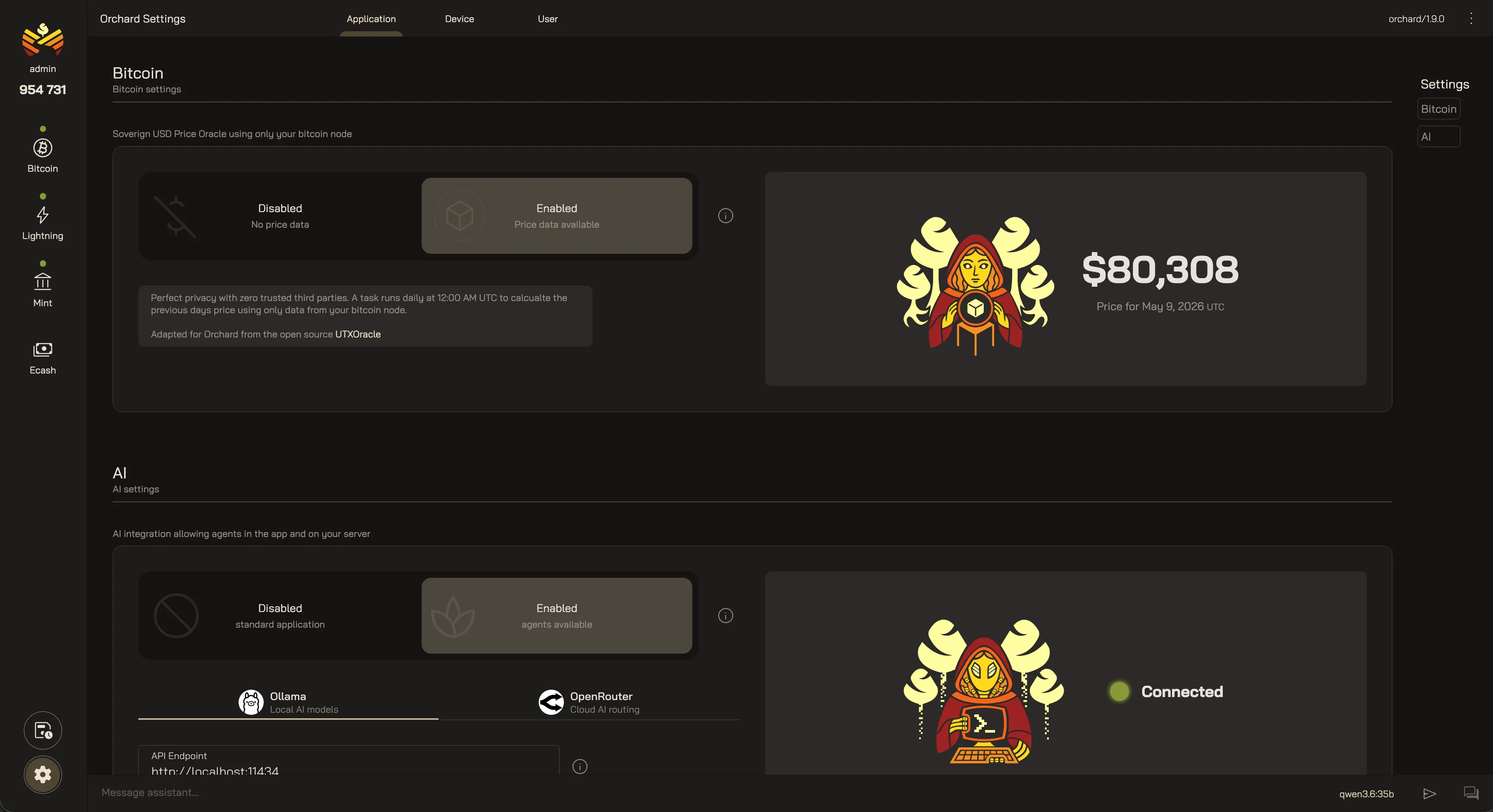
Application
Section titled “Application”Application settings enable optional features that apply to the whole instance for every user and every device.
Bitcoin
Section titled “Bitcoin”The Sovereign USD Price Oracle lives here. Enable it and Orchard derives a US-dollar price from your own node’s on-chain data once a day, at 00:00 UTC. There is no exchange API and no third-party feeds at all, so your activity stays private. It uses the open-source UTXOracle method, adapted for Orchard. Leave it disabled and conversions will be hidden.
Turn on the optional AI integration to get in-app assistants and a background agent running on your server. Orchard supports two model providers:
- Ollama — local models on your own hardware.
- OpenRouter — cloud-hosted models with an API key.
The agent is completely customizable. You can define:
- AI Agent — The response agent that answers questions over Telegram and answers follow up questions about alerts. You configure a model, a system prompt, and a scoped set of tools across Bitcoin, Lightning, and the mint.
- Agent Jobs — a custom prompt paired with a schedule, running unattended and reporting back; for example, a mint-health monitor that runs every morning.
- Messaging — connect a Telegram bot to interact with this agent. This allows you to receive alerts on your phone, and answer questions wherever you are.
Device
Section titled “Device”Device settings are scoped to the browser you’re signed in from, so each device you use can display Orchard the way you like without changing anything for anyone else.
Location
Section titled “Location”Set your timezone and locale so dates, times, and numbers read the way you expect, or sync them from the device automatically.
Switch between a dark and light appearance, or follow your system preference.
Currency
Section titled “Currency”Choose how amounts are shown — both the bitcoin unit (BTC, mBTC, sat) and the fiat currency (USD, EUR, and so on).
AI model
Section titled “AI model”Pick which model the in-app assistants use, from the models your chosen provider offers.
User settings cover your own account.
Profile
Section titled “Profile”Change your username, and update your password.
Messaging
Section titled “Messaging”Add your personal Telegram chat ID so the agent can message you directly. Open a chat
with the configured bot and send /start to get your ID.
Your Orchard Settings
Last updated: